sound
English | 日本語
Overview
- This sample uses
AudioSynthandGameAudioSynthso you can inspect sound effects and BGM while adjusting them on the same screen - After starting the
AudioContextwithAudio Start, you can play sound withPlay SE,Next SE,Audition All, andBGM Start, then adjust volume, delay, reverb, envelope, and melody on the spot - The sample is arranged so you can go back and forth on a single screen between "what to play" and "how to shape what it sounds like"
Reading the Screen
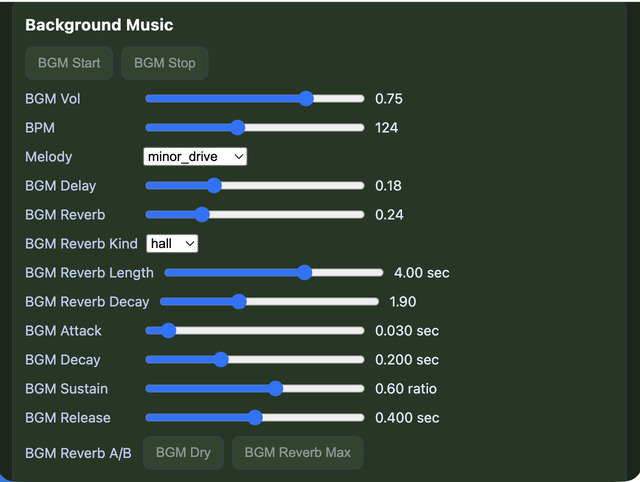
The screen is divided into System, Sound Effects, and Background Music. In that order, you first start the AudioContext, then adjust sound effects, and finally adjust melody, BPM, BGM envelope, and BGM reverb directly to refine the detailed contour of the BGM.
System contains Audio Start and Master Vol. Audio Start is the button that starts AudioContext after a user gesture, matching browser restrictions. Master Vol is the baseline for the overall volume. Adjusting that first makes it easier to compare the relative balance between sound effects and BGM.
In Sound Effects, you choose the effect to play through Sound Effect, then play it with Play SE. Next SE advances through the catalog one item at a time, while Audition All plays the full catalog in sequence so you can compare the differences. SE Profiles shows the envelope profiles used by that effect, and Editing Profile shows the profile currently being edited by the sliders. SE Vol, SE Delay, SE Reverb, SE Reverb Kind, SE Reverb Length, SE Reverb Decay, SE Envelope, SE Attack, SE Decay, SE Sustain, and SE Release let you change the contour and spatial character of the same sound effect in considerable detail.
In Background Music, you work with BGM Start, BGM Stop, BGM Vol, BPM, Melody, BGM Delay, BGM Reverb, BGM Reverb Kind, BGM Reverb Length, BGM Reverb Decay, BGM Attack, BGM Decay, BGM Sustain, and BGM Release. Because BGM changes its progression itself through melody and BPM, it is different from SE and is better adjusted while listening to the flow of time.
How to Run
- Open ./sound.html
- Use a browser with WebGPU support, and check the help panel and HUD together with the sample when needed
webg Features Used
GameAudioSynth: handles the game-oriented sound-effect catalog and melody presets togetherAudioSynth: handles envelope, delay, reverb, and IR settings for SE and BGM
Checkpoints
The first thing to do is press Audio Start. Once sound output is enabled, use Sound Effect and Play SE to inspect short effects, then use BGM Start to play a melody. If you want to inspect the contour of the sound, change SE Envelope. If you want to inspect spatial character, change SE Reverb Kind, SE Reverb Length, and SE Reverb Decay. If you want to inspect the flow of BGM, change Melody and BPM.
This sample also provides comparison buttons such as SE Dry / SE Reverb Max and BGM Dry / BGM Wet. If the difference is hard to hear at middle slider values, pushing the state to an extreme and then returning makes it easier to grasp the direction of change.
SE Reverb Kind and BGM Reverb Kind switch between room, hall, and plate. These are not simply buttons for increasing reverberation; they change the character of the reverberation itself. Length describes the length of the IR, and Decay describes how quickly it fades. You can compare the full range from a short, tight room to a long, spreading hall.
SE Envelope is the place where you switch the envelope profile used by the chosen sound effect. Profile names are grouped like instrument categories such as percussion, brass, woodwind, organ, piano, and guitar, making it easy to compare time behavior such as percussive hits, wind-like sustain, held tones, and plucked or struck strings. When you change SE Attack, SE Decay, SE Sustain, and SE Release, the next playback of that profile changes. Because short sound effects can make the difference harder to hear, selecting tail_probe makes both the front contour and the trailing tail easier to compare.
BGM Envelope defines the attack and tail of each BGM note. When you change BGM Attack, BGM Decay, BGM Sustain, and BGM Release, the impression changes even with the same melody. BPM changes speed, and Melody changes the shape of the phrase, so BGM is easier to tune if you separate "what is played" from "how it progresses". The BGM-side reverb is initialized a little stronger and more hall-like than the SE side, making it easier to first grasp the longer phrase tail when Audition All plays the melody.
First, press Audio Start and confirm that Play SE, Next SE, Audition All, and BGM Start become active. Then switch Sound Effect and confirm that SE Profiles and Editing Profile change to match the selected sound. After that, move SE Attack, SE Decay, SE Sustain, SE Release, and SE Reverb, replay the same effect, and compare the differences.
When you press Audition All, confirm that the entire catalog plays in sequence. If you want to stop it halfway, pressing the same button stops it. Next SE advances only one item at a time, which is useful when you want to hear a specific effect once again.
When you switch SE Reverb Kind between room, hall, and plate, the reflection texture changes even if the wet amount stays the same. Changing SE Reverb Length and SE Reverb Decay changes both the length and the falloff of the reverberation. Selecting tail_probe makes differences in envelope and reverb tail easier to follow than with shorter sound effects.
On the BGM side, change Melody while adjusting BPM and BGM Envelope, and compare how the same source can feel different. Changing BGM Reverb Kind, BGM Reverb Length, and BGM Reverb Decay shows how the same melody changes in spatial spread. The initial values lean toward a stronger hall sound, so it is easier to hear the difference if you first play it as-is and then return toward the dry side.
Controls
This sample is controlled not with keyboard input but with on-screen UI buttons and sliders.
Audio Start starts the AudioContext, BGM Start / BGM Stop start and stop the BGM, and Play SE plays the currently selected sound effect once. SE Dry / SE Reverb Max and BGM Dry / BGM Wet switch to fixed comparison states.
Common Pitfalls
If you do not press Audio Start, no sound will play. This follows browser restrictions. Start the AudioContext first, then use the other buttons.
SE Reverb and SE Reverb Kind are different settings. SE Reverb is the amount of reverberation, while Kind is the character of the reverberation. The same applies on the BGM side: BGM Reverb is the amount and BGM Reverb Kind is the character.
SE Attack and BGM Attack are in seconds, while SE Sustain and BGM Sustain are ratios. Because the units differ, it is easier to understand the behavior if you watch the displayed values while moving the sliders.
Related Documents
18_サウンドの設計.md explains the implementation in detail, and 01_はじめに.md is the overall project entry point. This README.md is easiest to read as guidance focused on how to operate the sample screen itself.