dof
English | 日本語
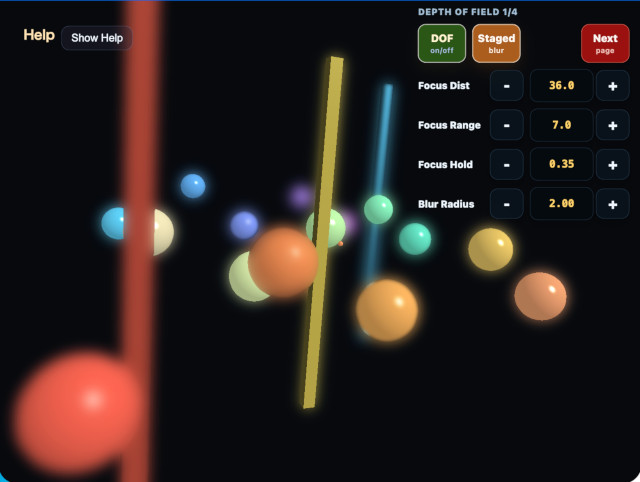
Overview
- This is a minimal depth-of-field sample that uses
DofPassto render the 3D scene once into an offscreenRenderTarget, then reads depth and keeps only the focus plane sharp - It is also a sample for confirming that
SeparableBlurPasscan be reused for purposes other than bloom WebgAppis used for startup and overlay display, while the main 3D scene switches to postprocess-based drawing withautoDrawScene: false- The sceneTarget used as the blur source keeps the normal forward-rendered scene color, including direct-light diffuse and specular. This avoids the unnatural case where only the specular highlight disappears as soon as the result switches to a blurred image.
- Instead of a floor, many small spheres are placed at near, focus-adjacent, and far distances so the movement of the focus plane can be recognized more easily
- A small cross-shaped guide is placed inside the 3D scene at the current
focusDistance, making it easier to track the focus-plane position without opening a debug view - In the CommandPalette, Focus Range follows the same meaning as
compute_dof: it is the distance width of one blur stage.DofPassuses this stage-width rule and moves from scene color to small / medium / large blur in order, so it is less likely to jump to a strong blur immediately after leaving the focus plane - By default, the sample uses Staged mode, where small / medium / large staged blur textures are selected gradually from the depth difference. This is the sample's standard path
- The three staged blur textures are not generated at the same resolution.
smalluses the base blur scale,mediumuses about 0.7x of that target size, andlargeuses about 0.5x. This reduces fill cost where large blur would dominate while keeping the appearance stable - The default blur iterations for small / medium / large are
1 / 2 / 4. Smaller blur stages gain little visible quality from extra iterations, so each stage uses only the amount of repetition it needs - The benchmark page in the CommandPalette can run an automatic sequence for
DOF Off / Staged S1 / Staged S2 / Staged Full / Staged Half, then download the averaged values and per-frame samples as JSON.Staged S1uses only the small blur stage, andStaged S2uses small + medium. During measurement, the view is fixed tocompositeso the comparison stays on the same output flow - Use CommandPalette Background to switch the clear color and compare bloom-like leakage that stands out on black backgrounds with edge appearance on brighter backgrounds
- The default values are tuned for a practical light blur that is easy to compare with
compute_dof: the CommandPalette showsfocusRange=7.0,Focus Hold=0.35,maxBlurMix=1.0, full quality, stage blur iterations1 / 2 / 4, andblurRadius=2.0 - The sphere geometry is built from a unit sphere only once, and each node expresses radius differences through a
Shapeinstance and uniform scale, avoiding duplicated mesh builds while changing only color - The operation guide and load display are shown in a collapsible help panel at the upper left with
buildHelpPanelOptions()andshowOverlayPanel(), while current DoF settings are shown directly on CommandPalette toggles, steppers, and selectors
How to Run
- Open ./dof.html
- Use a browser with WebGPU support, and check the help panel and CommandPalette together with the sample when needed
- Open the CommandPalette by double tapping the canvas or pressing
/. You can change background, focus distance, focus range, blur radius, and per-stage iterations while seeing their current values. The help panel also shows frame timing, so the appearance and load can be compared on the same screen.
webg Features Used
WebgApp: initialization ofScreen / Shader / Space / Input / Messageand overlay displaybuildHelpPanelOptions() + showOverlayPanel(): builds the standard help panel at the upper left and toggles the visibility of the operation guideCommandPalette: provides a settings panel opened by double tapping the canvas or pressing/, and lets the sample show and edit current DoF values in placeShape.createInstance(): reuses the shared resource of the unit sphere and places spheres of different colors with individual material and node scaleRenderTarget(sampleDepth=true): offscreen render target whose color and depth can be read by later passesEyeRig(type="orbit"): orbit viewpoint for inspecting the depth layout
Instancing Measurements
- Before instancing
vertexCount=12252triangleCount=22436boneCount=0nodeCount=27shapeCount=23meshCount=23- After instancing
vertexCount=681triangleCount=1156boneCount=0nodeCount=27shapeCount=23meshCount=4shapeCountdoes not change because the number of spheres placed in the scene itself is the samemeshCount,vertexCount, andtriangleCountdecrease greatly because the unit-sphere geometry is built only once and its shared resource is reused by multipleShapeinstances
Checkpoints
- Toggle DOF on and off with the CommandPalette DOF toggle and confirm that spheres farther from the focus plane become more blurred
- Confirm that even when the camera rotates, the view is not blocked by a floor and multiple small spheres remain visible as front-to-back layers
- When changing
Focus Distwith the CommandPalette, confirm that the depth band that appears sharp moves forward and backward - When changing
Focus Distwith the CommandPalette, confirm that the cross guide inside the 3D scene also moves forward and backward to the same distance - Confirm that the help panel appears at the upper left, that pressing
Hide Helpleaves only theShow Helpbutton, and thatShow Helprestores it - When changing
Focus Rangewith the CommandPalette, confirm that the distance width of one blur stage becomes narrower or wider - When changing
Blur Radiusor per-stage iterations with the CommandPalette, confirm how the bleed outside the focus area and GPU load change - When changing
Max Blurwith the CommandPalette, confirm how strongly blur is mixed back into the scene - When switching blur quality between full and half with CommandPalette
Quality, confirm how the small / medium / large blur target sizes all change together and how that affects final appearance and GPU load - When switching
Stage Cntbetween1 / 2 / 3, confirm how the number of staged blur levels changes both the appearance and the GPU load - On the benchmark page in the CommandPalette, adjust
WarmupandSamples, runBench, and confirm that the result can be saved fromJSON - Use CommandPalette
Viewto switch betweencomposite / scene / depth / focusMask / stageMask / blurSmall / blurMedium / blurLargeand confirm that the depth distribution, focus-plane mask, selected blur stage, and each blur texture can be inspected directly focusMaskuses the same color coding ascompute_dof: focus is 0, foreground stages are -1 / -2 / -3, and background stages are 1 / 2 / 3- In
stageMask, scene / small / medium / large are shown in distinct colors so the selected blur stage can be recognized directly - Switch CommandPalette
Backgroundand confirm how the clear color changes blur leakage and focus-edge appearance
Controls
Hide Help / Show Helpin the upper-left help panel: show or hide the operation-guide body text- Double tap the canvas or press
/: show or hide the CommandPalette - Drag / arrow keys: orbit camera rotation
- Mouse wheel /
[ / ]: zoom - CommandPalette page 1: DOF on/off, Staged, Focus Dist, Focus Range, Focus Hold. Focus Range is the distance width of one blur stage
- CommandPalette page 2: Blur Radius, Max Blur
- CommandPalette page 3: View, Background, Quality, Small Iter, Medium Iter, Large Iter, Stage Cnt, Curve, Reset
- CommandPalette page 4: Bench, JSON, Warmup, Samples