cube4
Overview
- This is a 3D falling-block game built on top of
webg
- It drops polycubes into a
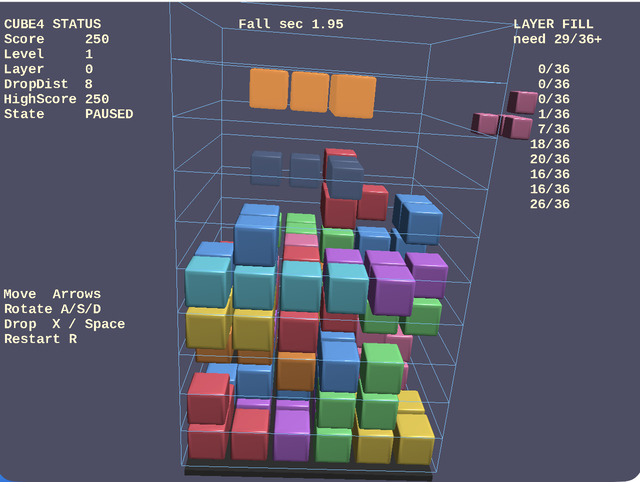
6x6x10 3D board and raises the score by clearing layers that become filled beyond a threshold
WebgApp is used as the entry point, and Shape / Primitive are used to build the floor, blocks, and per-layer wireframe walls- The camera uses an
EyeRig orbit configuration, and movement input is corrected into the x / z directions based on camera yaw
- Before the game starts, pieces stay at their starting height while you inspect the controls and rotation demos for every block type
- During gameplay, the HUD is reduced to a single
score / level / layer line, and the operation guide is shown only before the start and on game over
- The sample includes ghost display, next-piece display, high-score saving, screenshots, sound effects, and BGM
- A layer clears when at least 29 of its 36 cells are filled, and score changes according to occupancy rate
How to Run
- Open ./cube4.html
- Use a browser with WebGPU support, and check the help panel and HUD together with the sample when needed
webg Features Used
WebgApp: standard initialization for Screen / Shader / Space / Input / Message / progress savingEyeRig(type="orbit"): orbit camera for viewing the whole boardShape / Primitive: generates blocks, floor, pedestal, and wireframe walls for each layerShape.createInstance(): reuses the shared resource of block shapes and changes only color and material for each slotShape.setWireframe(true): displays layer walls as wireframe polygon-edge loopsMessage: HUD display for status and guide informationGameAudioSynth: playback of sound effects and BGMtakeScreenshot(): saves a screen capture
Checkpoints
- Confirm that wireframe walls surrounding each layer are visible around the 3D board, making it easier to understand the height of the blocks
- Confirm that arrow-key movement is corrected based on camera yaw, producing natural left-right / front-back movement relative to the viewing direction
- Confirm that pieces stay at their starting height before input, and that move / rotate / drop starts the game
- Confirm that the ghost display indicates the final drop position and that hard drop fixes the piece there immediately
- Confirm that a layer clears when 29 or more cells are filled and that score increases according to how full the layer was
- Confirm that before the game starts, the rotation demo shows 8 polycube types at individual speeds and disappears after gameplay begins
- Confirm that the
score / level / layer HUD, sound effects, BGM, high-score saving, and screenshot behavior all work together
Reading Shape and Rendering Cost
- This sample is arranged so that you can inspect the effect of mesh sharing through
Shape.createInstance() while displaying many blocks. Looking at diagnostics such as vertexCount, triangleCount, nodeCount, shapeCount, and meshCount shows that the number of vertices and meshes sent to the GPU can vary greatly even when the appearance looks similar. Representative values for each block-shape configuration are shown below
- Bevel 1 stage
vertexCount=42112triangleCount=17824nodeCount=429shapeCount=417meshCount=408- Bevel 3 stages
vertexCount=84128triangleCount=37216nodeCount=429shapeCount=417meshCount=408- Bevel 3 stages + shared vertices
vertexCount=23932triangleCount=37216nodeCount=429shapeCount=417meshCount=408- Bevel 3 stages + shared vertices + instancing
vertexCount=391triangleCount=508nodeCount=429shapeCount=417meshCount=9- Increasing bevel from 1 stage to 3 stages raises both triangle count and vertex count, but shared vertices greatly reduce vertex count while keeping the same triangle count. Reusing shared resources through
Shape.createInstance() then greatly reduces the number of built meshes and vertices even though the shapeCount and nodeCount hanging from the scene stay the same
Controls
- Arrow keys: move based on camera direction
A / S / D: rotate around the X / Y / Z axesX: move down by 1 stepSpace: hard dropP: pauseR: restartK: save a screenshotB: switch block-shape modeT: toggle touch controls on or off on desktop- Touch buttons:
RX / RY / RZ / ⬇, ← / → / ↑ / ↓, R