axis
English | 日本語
Overview
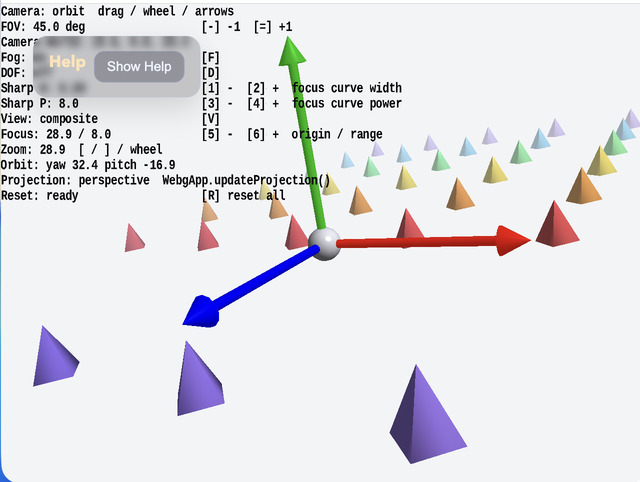
- This is an educational sample that places the X / Y / Z reference axes at the origin of 3D space so you can check coordinate-system orientation and scale
- It uses
WebgAppfor startup and lets you compare the orbit camera fromEyeRigwith projection updates fromWebgApp.updateProjection()in the same screen projectionFaris narrowed to160, matchingsamples/dof, so the readable range for depth-buffer precision stays compact- By changing the FOV with
- / =and the camera distance with[ / ]or the mouse wheel, it becomes easier to follow how the projection matrix changes the final view - The camera's world position is displayed near the FOV display so that the relationship between viewpoint position and final appearance is easier to inspect at the same time
- The background and fog are shifted slightly toward gray, and the CommandPalette is drawn in black so the axis colors and pyramid colors remain easy to read
- The red X, green Y, and blue Z axes are drawn slightly thicker so the axes themselves do not get lost even on a white background
- In addition to the red X, green Y, and blue Z axes, small vividly colored pyramids are placed across a wide range in the positive and negative Z directions, with denser spacing horizontally, so depth and perspective are easier to read on planes near the axes
- Pressing
Ftoggles fog and pressingDtoggles DOF, making it easier to compare how depth cues change in the same scene Vswitches betweencomposite / scene / depth / focusMask / stage / smallBlur / mediumBlur / largeBlur, so the focus mask and staged blur steps can be compared visuallyfocusRangeis treated as the distance width of one blur stage rather than the full distance to maximum blur, making the out-of-focus bleed easier to inspect step by stepmaxBlurMixis kept high so the difference between in-focus and out-of-focus areas is easier to notice5 / 6changes the focus range itself, making the focused distance band easier to adjust1 / 2changes sharpness width and3 / 4changes sharpness power, making it easier to compare the curve shape relative tofocusRange- The DOF focus always stays at the origin so that the center sphere remains sharp even when the camera moves
- The axes and the pyramid grid are kept level to avoid confusion caused by tilt
- The origin is drawn as a small sphere so the intersection of the coordinate axes is visible without being too heavy
- The operation guide and educational notes are collected in the collapsible help panel at the upper left with
buildHelpPanelOptions()andshowOverlayPanel(), while current values are shown separately on the CommandPalette
How to Run
- Open ./axis.html
- Use a browser with WebGPU support, and check the help panel and CommandPalette together with the sample when needed
webg Features Used
buildHelpPanelOptions() + showOverlayPanel(): builds the standard help panel at the upper left and toggles the visibility of operation notes and supplemental explanationsEyeRig: bundles the orbit camera and pointer / keyboard inputShape / Primitive: generates the axis arrows, origin sphere, and pyramid rowsWebgApp.updateProjection(): entry point for updating the projection matrix fromviewAngleand viewport aspectCommandPalette: shows current values while editing FOV, fog, and DOF settings
Checkpoints
- Confirm that the X / Y / Z colors and directions match expectations, keeping the coordinate-system reading consistent with the other samples
- Confirm that changing the camera orbit and FOV significantly changes the appearance even though the scene itself stays the same
- Confirm that the origin sphere and the pyramid rows extending in the Z direction make depth easier to read than axes alone, and that comparison with the level grid is also easier
- Confirm that the upper-left help panel shows the axis explanation and operation guide, that pressing
Hide Helpleaves only theShow Helpbutton, and thatShow Helprestores it - Confirm how the emphasis of depth changes when fog and DOF are toggled
- Confirm that CommandPalette and the help panel remain readable on the white background
Controls
Hide Help / Show Helpin the upper-left help panel: show or hide the operation-guide body text- Drag: orbit camera
- Arrow keys: orbit camera
- Mouse wheel /
[ ]: camera distance - / =: FOVF: toggle fog on or offD: toggle DOF on or off5 / 6: narrow or widen the focus range1 / 2: decrease or increase sharpness width3 / 4: decrease or increase sharpness powerV: switch the DOF debug view betweencomposite / scene / depth / focusMask / stage / smallBlur / mediumBlur / largeBlur- Compare the stage debug view with small / medium / large blur to inspect out-of-focus bleed
r: reset the camera, FOV, fog, and DOF